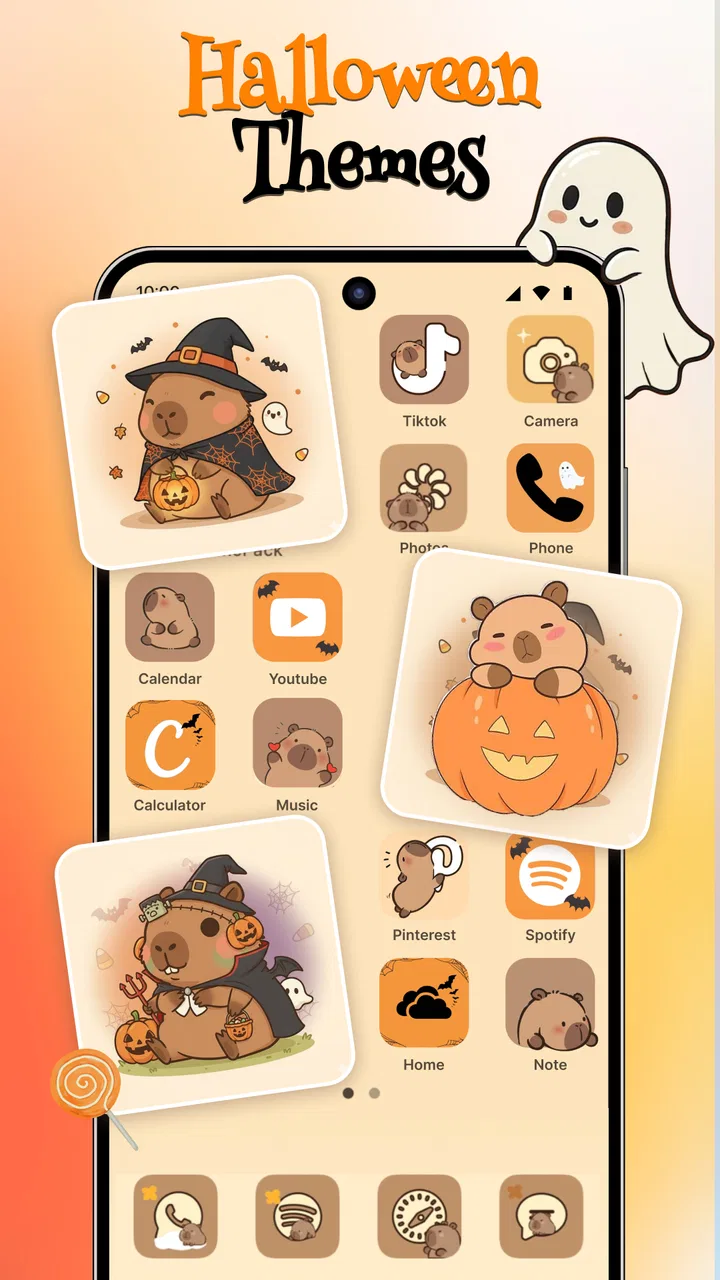
ThemeMate DIY Themes & Widgets
- 4.6
- Rating
- 100.00K
- Installs
- Free
- Price

 Analysis by App-foxy
I tried ThemeMate DIY Themes & Widgets as a personalization app rather than treating it as a simple wallpaper picker. Its main appeal is the chance to give a phone a more coordinated look with themes, high-resolution wallpapers, icons, and widgets in one place. That sounds straightforward, but the real value depends on how patiently you build and maintain the result. A good-looking screen is not created by tapping the first attractive image; it comes from choosing a visual direction, checking how it works with your launcher, and avoiding decoration that makes everyday tasks slower.
Developed by WestPoint Store, the app is free to install and is suitable for everyone. It runs on Android 7.0 and later, which makes it accessible to people using older devices as well as newer phones. The current version is 1.2.5, and the app has passed the early discovery stage with more than one hundred thousand installs. I also noticed that its average score sits at 4.6 from roughly 1.6 thousand ratings, so there is clear interest in the concept, although a rating alone cannot tell you whether its style matches your taste.
Building a useful starting layout instead of chasing decoration
My preferred way to begin with ThemeMate is to treat the first setup as a baseline rather than a final makeover. I start by deciding what I actually want the home screen to do. If I need quick access to a calendar, notes, weather, or communication apps, those priorities should shape the design. A wallpaper and icon set may look impressive in isolation, but they are less successful if important shortcuts become difficult to recognize.
You May Also Like

 Blood Strike: 2.5 Anniversary
Blood Strike’s Loadouts Turn Every Drop Into a Tactical Gamble
A close look at Blood Strike’s custom loadouts: how fast access to signature weapons reshapes its battle royale rhythm, rewards preparation, and narrows the gap between fights.

 Pandora - Music & Podcasts
Pandora’s Music Is Easy to Start, but Harder to Recover
Pandora’s strength is its low-effort path from a seed to a station. Its weak spot is how much confidence it asks you to place in connection, setup, and quiet recovery.

 8 Ball Pool
8 Ball Pool Is Built on Rivalries, Rematches, and Routine
A close look at the rivalries, rematches, shared routines, and unanswered safety questions that turn a quick pool match into a persistent mobile community.

 Samsung Music
Samsung Music’s Quiet Strength Is Playing What You Already Own
Its reach comes less from spectacle than from dependable access to a personal library. That simplicity is both the app’s strongest retention engine and its ceiling.

 AccuWeather: Weather Radar
AccuWeather Review: A Quick, Clear Forecast for Everyday Decisions
For everyday plans, the best forecast is the one you can understand quickly. AccuWeather makes rain timing, radar, and local conditions easy to act on, with a few trade-offs.

 Hill Climb Racing
Why Hill Climb Racing Still Turns Crashes Into One More Run
A tiny car, a bumpy hill and one more upgrade: Hill Climb Racing keeps resurfacing because its simple chaos makes every near-miss feel personal.
More From Our News Desk



The app is most convincing when its visual elements are considered together. A wallpaper with a busy center can compete with icons, while a pale image may reduce the contrast of labels and widgets. I found it more useful to choose the background first, then test an icon style against it, and only afterward decide whether a widget improves the arrangement. This order avoids the common mistake of forcing every available element onto one screen simply because it belongs to the same theme.
For a realistic everyday example, imagine checking your phone during a commute. You may want one glance at the time, the next appointment, and the weather, followed by a quick tap on a messaging app. I would place only those essentials on the first page, keep a consistent icon area, and move less frequent apps elsewhere. ThemeMate can supply the visual pieces, but the final usability still comes from the way you arrange the phone’s own home-screen controls.
That distinction matters because the app is not a replacement for the launcher itself. It helps with the appearance of the screen, but your phone’s launcher remains responsible for folders, page behavior, gestures, app placement, and widget handling. If you expect one tap to redesign every part of the device with no adjustment afterward, the experience may feel less automatic than the store summary suggests.
I recommend taking a screenshot of the original layout before changing anything. This is not glamorous advice, but it makes experimentation safer. If an icon placement becomes confusing or a widget occupies more room than expected, you have a visual reference for restoring the practical arrangement. It also lets you compare whether the new design genuinely improves the phone or merely looks different.
Choosing themes with daily visibility in mind
The large wallpaper collection is the most immediately noticeable part of the experience. High-resolution images are useful on modern displays, but sharpness is not the only quality that matters. I look at where the main subject sits, whether the image leaves quiet areas for icons, and how it appears in both bright and dim conditions. A dramatic background can be attractive at night yet make labels hard to read in daylight.
One of the more useful habits is to judge a wallpaper after icons and widgets are placed, not before. Empty space in the preview may disappear once the home screen is populated. Likewise, a dark image can make white text clear while causing light-colored widgets to blend into the background. ThemeMate gives you the ingredients, but the best result comes from testing the complete combination.
Icons deserve similar attention. A themed icon set can make a phone feel much more coherent, especially when the original app icons use unrelated colors. However, consistency can have a practical cost: if every icon has the same shape and tone, recognition may depend more heavily on position and memory. I would keep the most frequently used apps in stable locations rather than rearranging them every time I change the visual theme.
Widgets are where appearance and information compete most directly. I prefer one useful widget over several decorative blocks. A compact clock or schedule element can support the purpose of the home screen, while too many panels create visual noise and reduce the space available for apps. Before accepting a widget arrangement, I check whether it still leaves comfortable room for tapping and whether it pushes important shortcuts onto another page.
Settings and small checks that prevent avoidable frustration
Before settling on a design, I check the phone’s own display settings, launcher settings, and widget behavior. ThemeMate cannot make every Android device render the same way. Screen size, icon spacing, label visibility, and launcher rules can change the final result. A layout that looks balanced on one device may feel crowded on another, especially when a widget uses a different size grid than expected.
I also pay attention to the distinction between applying a visual element and arranging it. A wallpaper may be easy to set, while icons and widgets may still need manual placement through the home screen. That is not necessarily a weakness, but it changes the time required. If you want a quick background refresh, the app is convenient. If you want a fully coordinated home page, plan for a second stage of adjustment outside the app.
Another practical check is readability. I test the chosen design with the phone’s normal brightness, not only in a bright preview. I also open a few common apps and return to the home screen repeatedly. This reveals whether the layout feels calm or whether the visual treatment becomes tiring after ordinary use. Personalization should make the phone feel more comfortable, not turn every glance into a small design project.
Because the app is free but includes optional in-app purchases ranging from $2.99 to $14.99 per item, I would explore the free experience before spending money. That is especially important if you already have a large wallpaper collection or only want occasional changes. Paid items may be worthwhile for someone who enjoys rotating themes regularly, but a casual user may get enough value without treating the app as an ongoing hobby.
Faster patterns for people who change their screen often
Experienced users can reduce setup time by creating a repeatable routine. I would keep a short mental checklist: choose a background with usable negative space, confirm icon contrast, add only essential widgets, and test the first page during normal use. Repeating that sequence is faster than browsing endlessly and then rebuilding the layout from scratch.
A second useful pattern is separating experimentation from the everyday screen. Use a secondary page to try a new wallpaper, icon treatment, or widget combination. This gives you room to judge the design without disrupting the shortcuts you rely on. If the experiment works, move the strongest elements to the main page. If it does not, the practical setup remains intact.
I also recommend keeping the app’s role narrow. Use ThemeMate to discover and coordinate visual assets, then use the launcher for organization. Mixing those jobs together can lead to unnecessary rearranging. For example, if you want a seasonal appearance, change the wallpaper and a few compatible icons while leaving app positions untouched. The phone will feel refreshed without forcing you to relearn where everything is.
For people who use several home-screen pages, a visual hierarchy helps. The first page should answer the question, “What do I need most often?” A second page can hold less frequent tools, and a separate area can carry decorative widgets or theme experiments. This approach makes the personalization visible without letting it take over the phone’s basic function.
Shortcuts are another area where restraint pays off. The app can inspire a more polished arrangement, but adding every possible shortcut defeats the purpose of a clean design. I would reserve prominent positions for actions that save real time, such as opening a frequently used conversation, checking a schedule, or launching navigation. Decorative elements should earn their space by making the screen more pleasant without hiding those actions.
Where the experience reaches its practical limits
The biggest limitation is that visual customization is not the same as complete system control. Android’s launcher and device manufacturer determine how much freedom you have with icon shapes, labels, grids, widget resizing, and transitions. ThemeMate can support a coordinated appearance, but it cannot guarantee that every phone will reproduce a theme exactly as shown in a preview.
There is also a trade-off between a dramatic design and long-term comfort. A highly detailed wallpaper may be exciting for a few minutes but distracting after dozens of daily unlocks. Likewise, an icon set with subtle differences can look elegant while slowing down recognition. I would choose a calmer design for a work phone and reserve bolder arrangements for a secondary device or a personal home page.
Users who want deep launcher automation may prefer a dedicated launcher or a manufacturer’s built-in theme system. Those alternatives can offer more control over grids, gestures, folders, transitions, and system-wide presentation. ThemeMate is a better fit when the main goal is discovering attractive visual components and combining them with the launcher you already like.
It may also be the wrong choice for someone who dislikes manual tweaking. The app’s concept encourages selection and arrangement, so the final result depends on personal decisions. If you only want a single wallpaper and never intend to adjust icons or widgets, a basic wallpaper utility will probably be simpler. On the other hand, people who enjoy refining their home screen will find more room to experiment here.
The purchase model deserves a measured approach as well. Since the app is free to start, I would not assume that every desirable design element requires payment, but I would also avoid buying several items before testing how they work with the device’s launcher. A beautiful asset may not solve a layout problem, and spending more does not automatically produce a more usable screen.
Who should use it and who should look elsewhere
I would recommend ThemeMate to Android users who want a more intentional home screen without committing immediately to a completely new launcher. It is particularly suitable for people who enjoy matching wallpapers, icons, and widgets, or who like giving their phone a different mood while keeping familiar navigation. The age rating of Everyone also makes it broadly approachable, and the wide Android compatibility helps users on older software versions take part.
I would be more cautious about recommending it to someone who values maximum simplicity. If your current home screen already has a clear layout and you rarely change it, the extra browsing and arranging may not justify the effort. It is also not the strongest match for users seeking advanced automation, detailed gesture control, or a single switch that transforms every system surface.
Compared with the usual wallpaper-only alternatives, ThemeMate offers a broader design process because it brings icons and widgets into the same personalization conversation. Compared with full launcher replacements, it is less ambitious and potentially easier to adopt because you can keep the launcher you already understand. That middle position is its clearest identity: more than a background gallery, but not a complete home-screen management system.
After using the app, my best advice is to judge it by the quality of your daily routine rather than the excitement of the first preview. Pick one design, live with it through a normal day, and notice whether you find apps quickly, read widgets comfortably, and enjoy returning to the home screen. If the answer is yes, the customization is doing useful work. If you spend more time correcting spacing and searching for icons, simplify the arrangement instead of adding more elements.
My final verdict is that ThemeMate works best as a visual toolkit for deliberate, repeatable personalization. It gives me enough variety to refresh a phone’s appearance and enough flexibility to build a coordinated screen, while still leaving the practical organization to Android’s launcher. The free entry point makes it easy to try, and the solid user response suggests that its approach connects with many people. I would use it when I want a polished change without replacing my whole phone experience, but I would skip it in favor of a dedicated launcher or a simpler wallpaper app when deeper control or zero-maintenance setup matters more.
FAQs for ThemeMate DIY Themes & Widgets
01What is ThemeMate DIY Themes & Widgets?
ThemeMate DIY Themes & Widgets is a customization app designed to help you personalize your phone’s appearance. It typically combines wallpapers, icon styles, widgets, fonts, and themed layouts so you can create a more consistent home-screen design. The app is aimed at users who want an aesthetic setup without manually searching for every individual element across several different applications.
02Can I create my own themes with ThemeMate?
Yes, ThemeMate is mainly focused on do-it-yourself customization rather than offering only fixed theme packs. You can usually combine backgrounds, icons, widgets, colors, and other visual elements to build a style that matches your preferences. However, the exact editing tools and level of system integration may vary depending on your device, operating-system version, and the features currently available in the app.
03Does ThemeMate work on both Android and iPhone?
ThemeMate’s available functions can differ considerably between Android and iOS. Android generally allows deeper customization of icons, launchers, widgets, and home-screen behavior, while iPhone customization may rely more on shortcuts, widgets, wallpapers, and supported system options. Before downloading, check the store listing for your device to confirm compatibility and review any platform-specific limitations.
04Is ThemeMate DIY Themes & Widgets free to use?
The app may be available to download for free, but some themes, widgets, design collections, or advanced customization tools can require in-app purchases or a subscription. It is worth checking the pricing details before applying a design, especially if the app promotes premium content. Also review whether a trial automatically changes into a paid subscription and learn how to cancel it through your app-store account.
05Will using ThemeMate affect my phone’s performance or privacy?
ThemeMate should not normally damage your phone, although animated wallpapers, large widgets, or frequently updating visual effects may use additional battery, memory, or data. As with any customization app, review the permissions it requests and avoid granting access that does not seem necessary for its main features. Downloading only from the official Google Play Store or Apple App Store also reduces security risks.
Pros
- Large selection of themes
- wallpapers
- icons
- and widgets
- DIY tools let you personalize layouts and color combinations
- Widget designs can give your home screen a cohesive look
- Regular content updates help keep the catalog feeling fresh
- Preview options make it easier to compare styles before applying
Cons
- Some premium themes and features require a subscription or purchase
- Certain widgets may need extra setup after applying a theme
- Customization options can vary between supported device models
- High-resolution wallpapers may use considerable storage space
- Ads may interrupt browsing in the free version

ThemeMate DIY Themes & Widgets
Gallery